
How to Lip Sync a Video to New Audio
Learn how to lip sync an MP4 video to a new voice recording, choose whether to trim or loop the video, and check the finished result before sharing.
Artplayer AI5 min leestijd
Op deze pagina
Voordat je begint
Need to correct a lesson, revise a product introduction or update a talking-head clip? AI video lip sync adjusts the speaker’s mouth movements to a new voice recording. You supply the video and finished audio. Follow these steps to prepare the files, choose the output length and check the result.
Start with one clearly visible face
Choose an MP4 with one real person facing the camera. The mouth and surrounding face should remain visible, with steady lighting and limited head turns. Hands across the mouth, extreme profiles, cuts to other people, and a face that leaves the frame make the input less suitable. HDR video is not supported. The platform accepts each input up to 30 minutes and 2 GB.
Use footage and a voice recording you have permission to combine. Keep the originals so you can compare the result and try a different recording if needed. Lip sync updates mouth movements; resolution enhancement and output frame-rate settings are not part of this tool.
Supply the finished voice track
Prepare the complete wording and timing you want in an MP3, AAC, WAV, M4A or FLAC file. Use one clear voice, with little background noise and no overlapping speakers. Trim unwanted silence and listen to the whole recording before uploading. The tool uses this finished audio; it does not generate a voice or translate speech.
Select the video and voice audio in their separate upload areas. You can choose files from your device or use the available import options. Compare the two durations, listen to the audio preview and choose whether the video should loop. Review the credit estimate before selecting Sync lips.
Choose whether the video should loop
With looping off, the output uses the shorter duration. A 30-second video paired with 90 seconds of audio produces about 30 seconds, so the rest of the speech is omitted. If the video is longer, the extra video is trimmed. This is useful when you want to keep the output within the original shot’s duration.
With looping on, the output follows the full audio duration. When audio outlasts the video, the video repeats forwards and backwards, rather than creating new footage. The same 30-second video with 90 seconds of audio therefore targets 90 seconds. Visible gestures can look unusual when reversed. Credits use output duration: 40 per minute, rounded up to whole credits, with a 3-credit minimum. These two examples cost 20 and 60 credits respectively; check the displayed quote before starting.
Review the complete result before sharing
After both uploads and successful submission, processing continues in the cloud. Return through My files to check progress and open the completed video. Watch it with sound from start to finish, paying attention to the mouth, face edges and any loop transitions. If a section looks unnatural, try clearer footage or a more suitable recording.
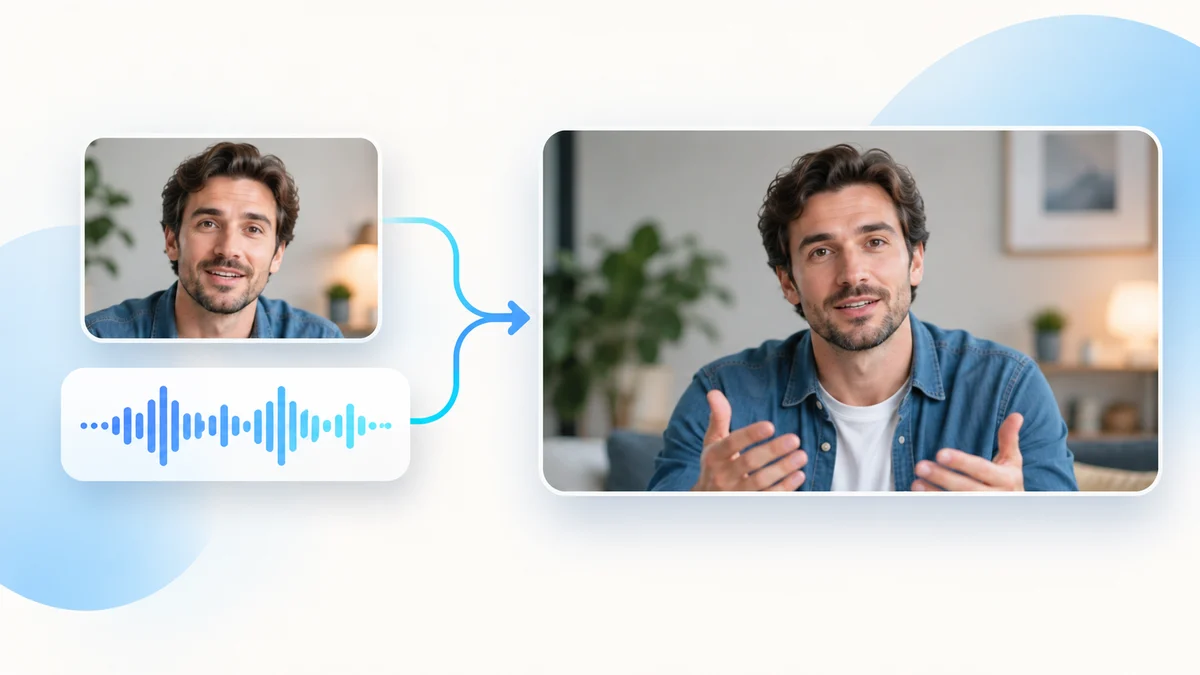
The tool page includes a before-and-after video with the same voice track on both sides. Listen with sound on: the left keeps the original mouth movements, while the right shows the synced result. The cover and use-case images are AI-generated illustrations. Source video and audio remain accessible for 24 hours after upload; results for 7 days after processing. Save a local copy before expiry. Output files are limited to 2 GB.
- Listen for complete words, clean audio, and the expected ending; confirm that the duration setting did not cut off speech.
- Watch lip closures, teeth, the jaw and face edges, especially during head movement or partial occlusion.
- Check gestures at forward/reverse transitions, then confirm the speaker is comfortable with the final version.
Klaar om de tool te proberen?
Kies je bestand, controleer de beschikbare instellingen en de kostenopgave in credits en begin wanneer je er klaar voor bent.
Sync a video to your audio