Google Drive
  Dropbox
 Local processing
The selected video is processed in this browser through the shared FFmpeg task page.
 Artplayer
Browser video tool
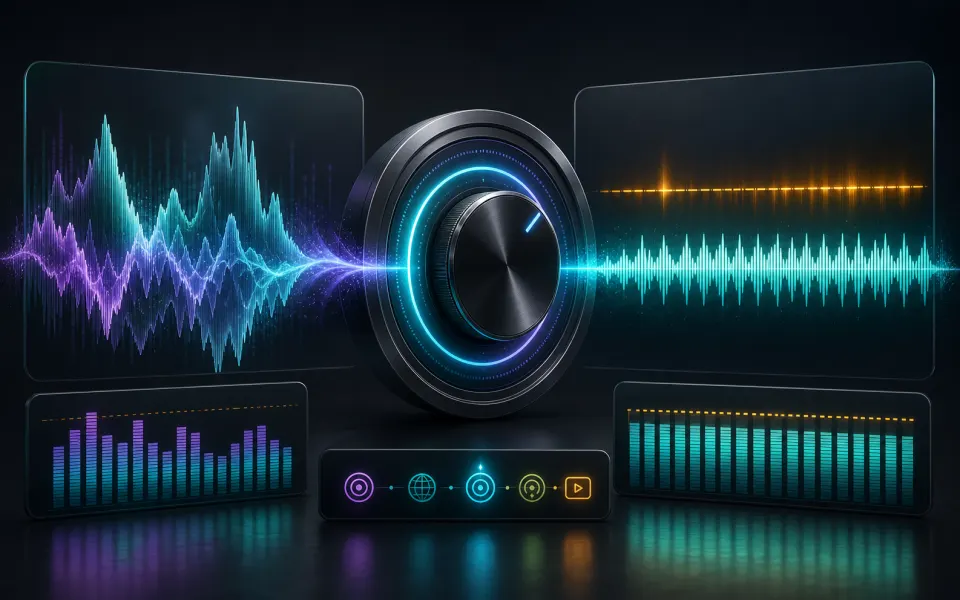
Make a video louder or quieter in the browser. Adjust audio volume from 0% to 300% and export an MP4 without uploading.
Artplayer AIThree steps to finish the browser workflow.
Make a video louder or quieter in the browser. Adjust audio volume from 0% to 300% and export an MP4 without uploading.
Choose a quick preset for quieter, normal, or louder output.
Choose a video, set the target volume, then ArtPlayer runs FFmpeg locally and exports a new MP4.
Core details about privacy, browser support, output, and practical limits before you start.
The selected video is processed in this browser through the shared FFmpeg task page.
Lower the volume, keep it subtle, or boost quiet footage up to 300%.
The result is encoded as a browser-friendly MP4 with synchronized video and audio.
Check supported inputs, output formats and usage requirements before you start.
| Supported input | Video files such as MP4, MOV and WebM. Container and codec support depends on the browser and processing runtime. |
|---|---|
| Output result | Export options: MP4. |
| Processing and privacy | Processing runs on this device. Source media is not uploaded for this workflow. |
| Browser requirements | A browser with the decoding and encoding capabilities needed by the selected media. Available codecs vary by device. |
| Usage limits | Processing capacity depends on duration, dimensions, codecs, settings and available device memory. Large inputs can fail; keep the original file. |
| Can I make quiet video audio louder? | Yes. Increase the volume percentage before exporting, then preview carefully to avoid clipping. |
Find quick answers about privacy, browser support, exports, and what to try when a file is heavy.
Continue editing with nearby ArtPlayer tools that work with the same local, browser-first workflow.