Google Drive
 Dropbox
Frame controls
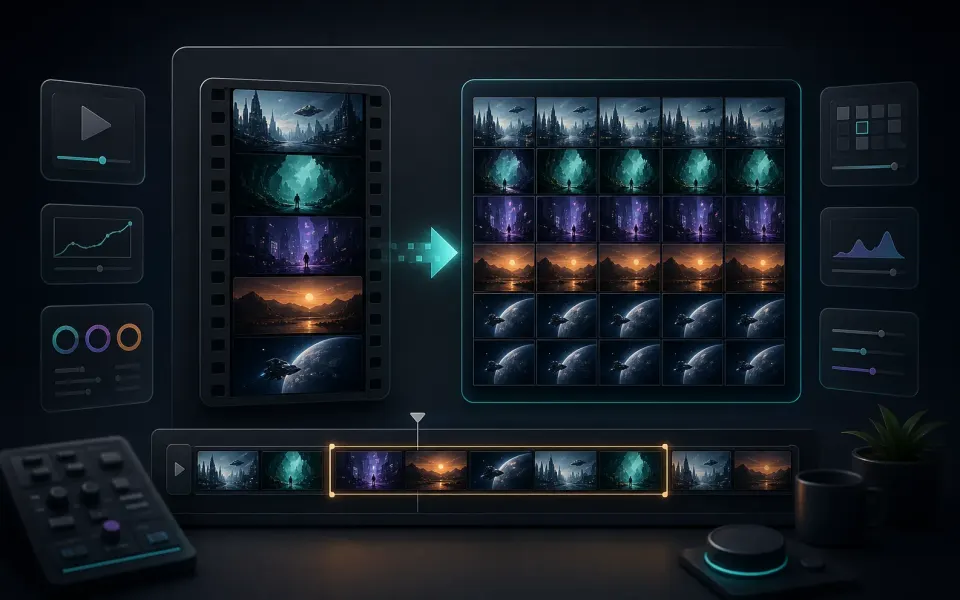
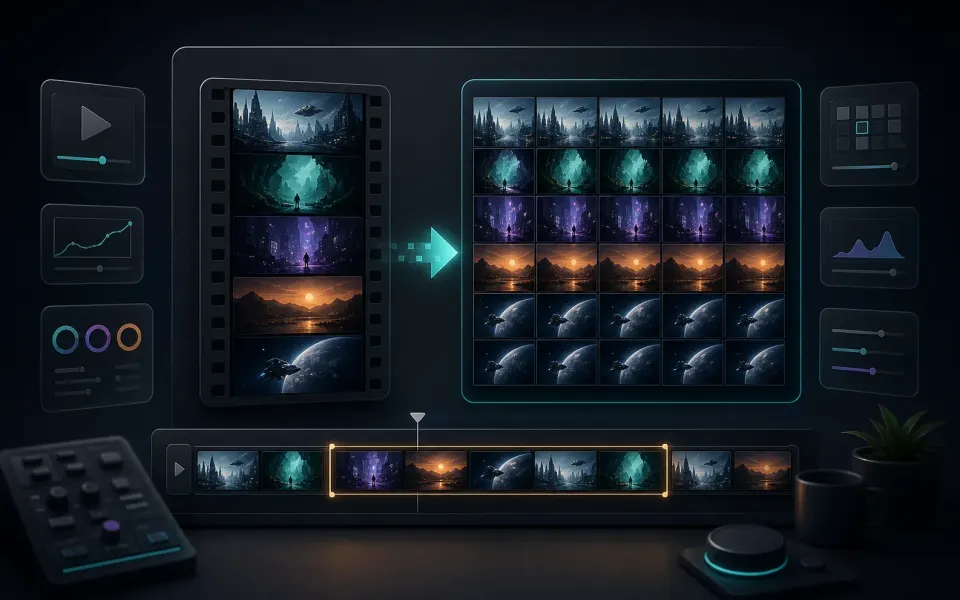
Use the timeline plus one-frame and ten-frame step buttons to land on the moment you need.
 Artplayer
Browser video tool
Capture a precise still image from a local video. Scrub the timeline, step frame by frame, then download the current frame as PNG, JPG, or WebP.
Artplayer AIThree steps to finish the browser workflow.
Choose the source file for Video Screenshot from your device.
Review the preview and tune the options for the result you want.
Check the finished result, then download the exported file.
Core details about privacy, browser support, output, and practical limits before you start.
Use the timeline plus one-frame and ten-frame step buttons to land on the moment you need.
Download a single clean image in the format that fits your workflow.
Preview the video, capture the current frame, and download the image immediately.
Check supported inputs, output formats and usage requirements before you start.
| Supported input | Video files such as MP4, MOV and WebM. Container and codec support depends on the browser and processing runtime. |
|---|---|
| Output result | Export options: PNG / JPG / WebP. |
| Processing and privacy | Processing runs on this device. Source media is not uploaded for this workflow. |
| Browser requirements | A browser with the decoding and encoding capabilities needed by the selected media. Available codecs vary by device. |
| Usage limits | Processing capacity depends on duration, dimensions, codecs, settings and available device memory. Large inputs can fail; keep the original file. |
| Does the screenshot use the original video resolution? | The output depends on the source frame and the browser capture path used by the page. |
Find quick answers about privacy, browser support, exports, and what to try when a file is heavy.
Continue editing with nearby ArtPlayer tools that work with the same local, browser-first workflow.