Screen, window, or tab
Use the browser sharing prompt to pick exactly what should be captured, with an optional webcam bubble on top.
 Artplayer
Browser recording tool
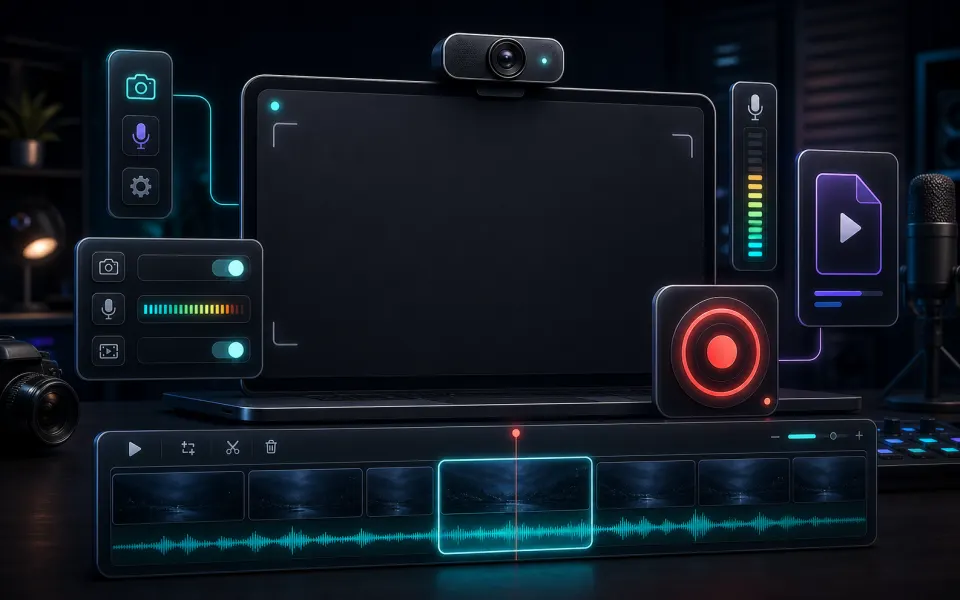
Record your screen in the browser with optional microphone audio and a draggable webcam bubble, then download a local WebM video.
Choose what to share
Start recording, pick a screen, window, or tab in the browser prompt, then stop when the capture is ready.
Artplayer AIThree steps to finish the browser workflow.
Record your screen in the browser with optional microphone audio and a draggable webcam bubble, then download a local WebM video.
The browser captures your selected screen source, optionally draws webcam video into a canvas overlay, mixes microphone audio, and keeps the recording on this device.
Check the finished result, then download the exported file.
Core details about privacy, browser support, output, and practical limits before you start.
Use the browser sharing prompt to pick exactly what should be captured, with an optional webcam bubble on top.
Record narration or voice notes with the screen capture when microphone permission is enabled.
The recording is created in the browser and is not uploaded to ArtPlayer servers.
Check supported inputs, output formats and usage requirements before you start.
| Supported input | A screen, window or browser tab selected in the sharing dialog; optional microphone or camera. |
|---|---|
| Output result | Export options: WebM. |
| Processing and privacy | Processing runs on this device. Source media is not uploaded for this workflow. |
| Browser requirements | Screen-capture permission and MediaRecorder support. Shared system audio depends on the browser and operating system. |
| Usage limits | Permission, browser support, recording duration and device memory limit recording. Keep the page open until the result is saved. |
| Can I record tab or system audio? | Audio options depend on your browser and operating system permissions during screen sharing. |
Find quick answers about privacy, browser support, exports, and what to try when a file is heavy.
Continue editing with nearby ArtPlayer tools that work with the same local, browser-first workflow.