Google Drive
  Dropbox
 Local image processing
Local AI keeps the selected image on this device during upscaling.
 Artplayer
Browser image tool
Enhance JPG, PNG, and WebP images with GPT Image 2 cloud AI or private local Real-ESRGAN.
Artplayer AIThree steps to finish the browser workflow.
Choose the source file for AI Image Upscaler from your device.
Review the preview and tune the options for the result you want.
Check the finished result, then download the exported file.
Core details about privacy, browser support, output, and practical limits before you start.
Local AI keeps the selected image on this device during upscaling.
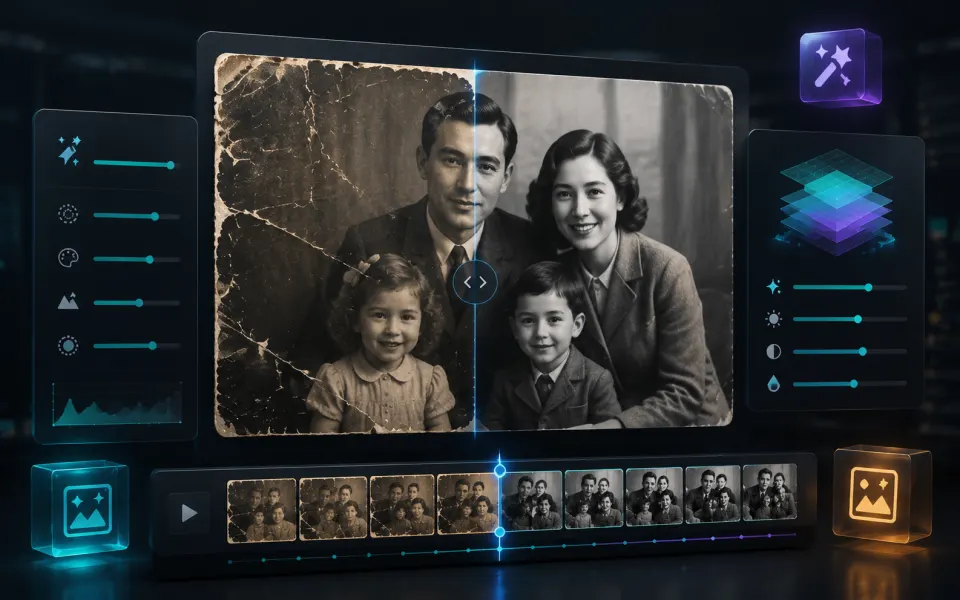
Cloud AI can restore natural-looking detail, reduce artifacts, and improve perceived clarity.
Use the recommended cloud mode for generative quality or switch to local mode for maximum privacy.
Check supported inputs, output formats and usage requirements before you start.
| Supported input | JPG, PNG or WebP images. |
|---|---|
| Output result | Export options: PNG. |
| Processing and privacy | The selected media is sent to a remote service for processing. An internet connection is required. |
| Browser requirements | A browser with network access to the service and media source; availability and quota checks also apply. |
| Usage limits | Input up to 10 MiB. Cloud quota and service checks also apply; generated detail may differ from the original. |
| Which images work best? | Clean images with moderate resolution usually upscale better than very noisy, tiny, or heavily compressed sources. |
Find quick answers about privacy, browser support, exports, and what to try when a file is heavy.
Continue editing with nearby ArtPlayer tools that work with the same local, browser-first workflow.